

ServiceAccounts and IRSA: Giving Pods Cloud Permissions Safely
Intermediate · 5 min read
Key takeaways
- Use ServiceAccounts and IRSA to securely manage cloud permissions for Kubernetes pods.
- Always follow the principle of least privilege to minimize security risks.
- Regularly review and audit IAM roles and policies to ensure they are up-to-date and secure.
The Problem
Imagine you are a DevOps engineer at a growing e-commerce company. Your team has been tasked with deploying a new microservice that needs to interact with AWS S3 to store and retrieve customer data. Initially, you might think of using a single set of AWS credentials for all your pods, but this approach is fraught with security risks. If these credentials are compromised, an attacker could gain access to all your cloud resources. This is where ServiceAccounts and IAM Roles for Service Accounts (IRSA) come in, providing a more secure and scalable way to manage cloud permissions for your Kubernetes pods.
Core Concepts
Before diving into the solution, let’s define some key terms:
- Kubernetes Pod: The smallest deployable unit in Kubernetes, consisting of one or more containers sharing storage and network resources.
- ServiceAccount: An object in Kubernetes that provides an identity for processes running in a pod. It can be used to authenticate to the API server and other services.
- IAM Role: An AWS Identity and Access Management (IAM) role is an AWS identity with permission policies that determine what actions can be performed on which resources.
- IAM Role for Service Account (IRSA): A feature that allows you to associate an IAM role with a Kubernetes ServiceAccount, enabling pods to assume the role and access AWS resources securely.
How It Works
When a pod is created, it can be associated with a ServiceAccount. If the ServiceAccount is linked to an IAM role via IRSA, the pod can assume the role and obtain temporary AWS credentials. These credentials are stored in the pod’s environment and can be used to make AWS API calls. This process ensures that each pod has the minimum necessary permissions, reducing the risk of a security breach.
Prerequisites
To follow this tutorial, you will need:
- An AWS account with the necessary permissions to create IAM roles and policies.
- A Kubernetes cluster (e.g., EKS, GKE, or a local Minikube).
- The AWS CLI installed and configured with your AWS credentials.
- kubectl installed and configured to interact with your Kubernetes cluster.
Hands-On Walkthrough
Let’s walk through the steps to set up a ServiceAccount with IRSA for a sample application that interacts with AWS S3.
Step 1: Create an IAM Role and Policy
First, create an IAM policy that grants the necessary permissions to interact with S3. For example, you might want to allow read and write access to a specific bucket.
aws iam create-policy --policy-name S3AccessPolicy --policy-document file://s3-access-policy.jsonNext, create an IAM role and attach the policy to it.
aws iam create-role --role-name S3AccessRole --assume-role-policy-document file://trust-policy.jsonAttach the policy to the role:
aws iam attach-role-policy --role-name S3AccessRole --policy-arn arn:aws:iam::123456789012:policy/S3AccessPolicyStep 2: Configure the OIDC Provider
Ensure that your Kubernetes cluster has an OpenID Connect (OIDC) provider. For EKS, this is typically already set up. You can check it with:
aws eks describe-cluster --name my-eks-cluster --query "cluster.identity.oidc.issuer" --output textIf not, you can enable it with:
aws eks update-cluster-config --name my-eks-cluster --oidc-issuer-url https://oidc.eks.us-west-2.amazonaws.com/id/EXAMPLED539D4633E53DE1B716D3041EStep 3: Annotate the ServiceAccount
Create a ServiceAccount and annotate it to link it to the IAM role.
apiVersion: v1
kind: ServiceAccount
metadata:
  name: s3-access-sa
  annotations:
    eks.amazonaws.com/role-arn: arn:aws:iam::123456789012:role/S3AccessRole
Step 4: Deploy the Application
Create a deployment that uses the ServiceAccount.
apiVersion: apps/v1
kind: Deployment
metadata:
  name: s3-app
spec:
  replicas: 1
  selector:
    matchLabels:
      app: s3-app
  template:
    metadata:
      labels:
        app: s3-app
    spec:
      serviceAccountName: s3-access-sa
      containers:
      - name: s3-app
        image: my-s3-app:latest
        command: ["python", "app.py"]
Verifying It Works
To verify that the pod has the correct permissions, you can exec into the pod and run a simple AWS CLI command to list the contents of the S3 bucket.
kubectl exec -it s3-app- -- /bin/sh Inside the pod, run:
aws s3 ls s3://my-bucketYou should see the contents of the S3 bucket, confirming that the pod has the necessary permissions.
Common Mistakes
Here are some common mistakes to avoid:
- Using the same IAM role for multiple ServiceAccounts: This can lead to overly broad permissions and increase the risk of a security breach. Always use the principle of least privilege.
- Not configuring the OIDC provider correctly: Ensure that the OIDC provider is properly set up and that the trust relationship in the IAM role is correctly configured.
- Forgetting to annotate the ServiceAccount: The annotation linking the ServiceAccount to the IAM role is crucial. Without it, the pod will not have the necessary permissions.
Going Further
For production environments, consider the following:
- Security: Regularly review and audit IAM roles and policies to ensure they are up-to-date and follow the principle of least privilege.
- Scalability: Use Kubernetes namespaces to isolate different environments (e.g., development, staging, production) and manage their respective ServiceAccounts and IAM roles.
- Performance Tuning: Monitor the performance of your applications and adjust the number of replicas and resource requests as needed.
- Alternative Approaches: Consider using AWS Security Token Service (STS) for more fine-grained control over temporary credentials, or using AWS Config to manage and audit your IAM configurations.
Cleanup
To remove the resources created in this tutorial, run the following commands:
kubectl delete deployment s3-app
kubectl delete serviceaccount s3-access-sa
aws iam detach-role-policy --role-name S3AccessRole --policy-arn arn:aws:iam::123456789012:policy/S3AccessPolicy
aws iam delete-role --role-name S3AccessRole
aws iam delete-policy --policy-arn arn:aws:iam::123456789012:policy/S3AccessPolicy
Architecture
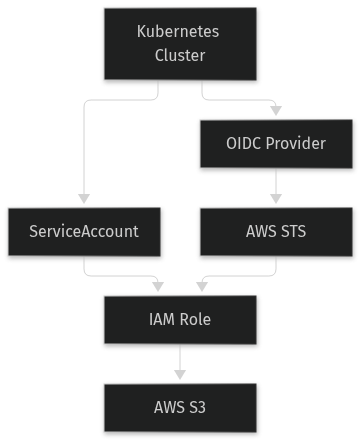
References
This article was written with AI assistance.