
Cutting Your Kubernetes Bill: Finding Idle and Overprovisioned Resources in Production Clusters
Intermediate · 9 min read
Key takeaways
- Requests reserve scheduler capacity, while limits enforce kubelet boundaries; misaligning them causes massive billing waste.
- Always install Metrics Server to gain visibility into actual CPU and memory usage versus declared requests.
- Use VPA in recommendation mode first to safely analyze overprovisioning before allowing it to automatically modify pods.
- Memory limits must account for application spikes to prevent OOMKills, whereas CPU limits only cause performance throttling.
The Problem
In the rush to deploy microservices and ensure high availability, development teams often adopt a “just in case” mentality when defining resource requirements for their applications. A developer might request 4 CPU cores and 8 gigabytes of memory for a simple API gateway, reasoning that it is better to have the resources available than to risk an outage during a traffic spike. When this pattern is replicated across dozens or hundreds of pods in a production cluster, the financial consequences are severe.
The cloud bill skyrockets because the Kubernetes scheduler reserves the requested capacity on the underlying nodes, preventing other workloads from using it. Meanwhile, the actual application might only consume 0.1 CPU and 512 megabytes of memory. This delta between requested and actual usage represents pure financial waste. Furthermore, idle resources—such as development environments left running over the weekend or deprecated services that still have running pods—continue to consume node capacity and drive up infrastructure costs. Identifying and eliminating this overprovisioning and idle waste is critical for maintaining a sustainable and cost-effective Kubernetes environment.
Core Concepts
To effectively find and eliminate waste, we must first understand the fundamental mechanics of how Kubernetes handles resources. The two primary concepts are Requests and Limits.
- Requests: This is the amount of CPU or memory a container is guaranteed to get. The Kubernetes scheduler uses requests to decide which node has enough available capacity to place the pod. If you request 1 CPU, the scheduler reserves 1 CPU on that node, even if the pod uses 0.01 CPU.
- Limits: This is the maximum amount of CPU or memory a container can use. The kubelet on the node enforces these limits. If a container exceeds its CPU limit, it is throttled (slowed down). If it exceeds its memory limit, it is terminated with an Out Of Memory (OOMKilled) error.
Overprovisioning occurs when the requests (and often limits) are set significantly higher than the actual steady-state usage of the application. This ties up node resources unnecessarily.
Idle Resources refer to pods that are running and consuming their requested capacity, but are not performing any useful work. This includes zero-traffic services, forgotten cronjobs, or non-production environments running 24/7.
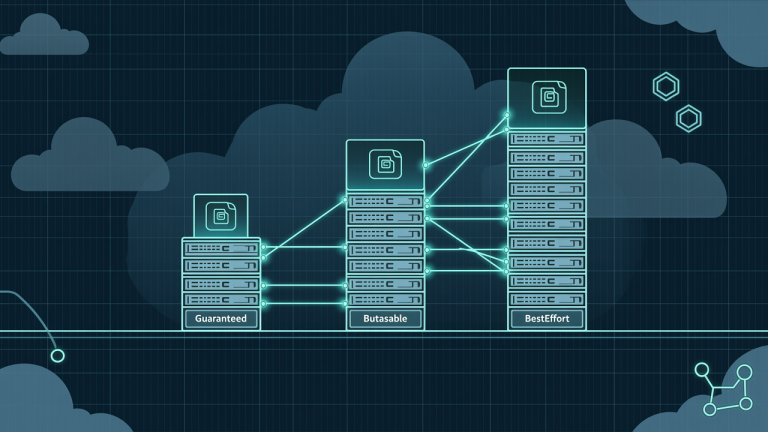
Finally, understanding Quality of Service (QoS) Classes is vital. Kubernetes assigns every pod a QoS class based on its requests and limits: Guaranteed (requests equal limits for both CPU and memory), Burstable (at least one container has a request less than its limit), or BestEffort (no requests or limits set). Overprovisioned pods are typically Burstable, but poorly configured ones might accidentally fall into BestEffort, making them the first to be evicted when a node runs out of resources.
How It Works
The mechanism for identifying waste relies on comparing the static declarations in your YAML manifests against the dynamic, real-time telemetry of the running containers.
Under the hood, the Linux kernel uses control groups (cgroups) to isolate and account for the resource usage of containers. The kubelet runs a component called cAdvisor (Container Advisor) on every node, which continuously collects CPU, memory, file system, and network usage metrics from these cgroups.
However, cAdvisor data is local to the node. To make this data available cluster-wide, the Metrics Server aggregates these metrics. It periodically scrapes cAdvisor data from all nodes and exposes it via the Kubernetes Metrics API. This is the foundational data pipeline for all resource visibility in Kubernetes.
Once the Metrics API is populated, tools like kubectl top or the Vertical Pod Autoscaler (VPA) can query it. The VPA controller continuously compares the historical actual usage (from the Metrics API) against the declared requests in the pod spec. By analyzing this historical data, the VPA can calculate a recommended request value that safely covers the application’s needs with a configured margin, highlighting exactly how much your current requests are overprovisioned.
Prerequisites
Before proceeding with the hands-on walkthrough, ensure you have the following:
- A running Kubernetes cluster (version 1.25 or later is assumed for this guide).
- The
kubectlcommand-line tool installed and configured to communicate with your cluster. - The Metrics Server installed and running in your cluster. Without it, you cannot view real-time resource usage.
- Basic familiarity with writing and applying Kubernetes YAML manifests.
Hands-On Walkthrough
In this walkthrough, we will deploy an intentionally overprovisioned application, observe the waste using native tools, and then use the Vertical Pod Autoscaler to generate right-sizing recommendations.
First, create a dedicated namespace for this exercise:
kubectl create namespace cost-optimizationNext, we will deploy a standard Nginx web server, but we will configure it with highly exaggerated resource requests to simulate a common overprovisioning scenario. Create a file named overprovisioned-deploy.yaml:
apiVersion: apps/v1
kind: Deployment
metadata:
  name: overprovisioned-nginx
  namespace: cost-optimization
  labels:
    app: nginx-demo
spec:
  replicas: 3
  selector:
    matchLabels:
      app: nginx-demo
  template:
    metadata:
      labels:
        app: nginx-demo
    spec:
      containers:
      - name: nginx
        image: nginx:1.25
        resources:
          requests:
            cpu: "2"
            memory: "4Gi"
          limits:
            cpu: "2"
            memory: "4Gi"
        ports:
        - containerPort: 80
Apply this manifest:
kubectl apply -f overprovisioned-deploy.yamlWait a few moments for the pods to start and for the Metrics Server to collect initial data. Now, let’s look at the actual resource usage compared to our massive requests:
kubectl top pods -n cost-optimizationYou will see that while the pods requested 2 CPU and 4Gi of memory, their actual usage is likely a fraction of that (e.g., 2m CPU and 50Mi memory). The cluster scheduler has reserved 6 CPU and 12Gi of memory across the three replicas, but the actual workload requires almost none of it.
To systematically find the right size, we will deploy the Vertical Pod Autoscaler in “Off” or recommendation mode. This allows the VPA to analyze the workload and suggest right-sized values without actually modifying the running pods. Create vpa-recommendation.yaml:
apiVersion: autoscaling.k8s.io/v1
kind: VerticalPodAutoscaler
metadata:
  name: nginx-vpa
  namespace: cost-optimization
spec:
  targetRef:
    apiVersion: "apps/v1"
    kind: Deployment
    name: overprovisioned-nginx
  updatePolicy:
    updateMode: "Off"
  resourcePolicy:
    containerPolicies:
    - containerName: nginx
      minAllowed:
        cpu: 10m
        memory: 50Mi
      maxAllowed:
        cpu: 1
        memory: 1Gi
Apply the VPA configuration:
kubectl apply -f vpa-recommendation.yamlVerifying It Works
To verify that the VPA is correctly analyzing the workload and identifying the overprovisioning, we inspect the VPA object’s status. Run the following command:
kubectl describe vpa nginx-vpa -n cost-optimizationIn the output, look for the Recommendation section. You should see output similar to this:
Recommendation:
  Container Recommendations:
    Container Name:  nginx
    Lower Bound:
      Cpu:     25m
      Memory:  262144k
    Target:
      Cpu:     50m
      Memory:  524288k
    Uncapped Target:
      Cpu:     50m
      Memory:  524288k
    Upper Bound:
      Cpu:     150m
      Memory:  786432k
This output proves the system is working. The Target values (50m CPU, ~512Mi memory) represent the VPA’s calculated ideal request based on historical usage. Comparing this to our original request (2 CPU, 4Gi memory), we can clearly see the massive overprovisioning. By updating our deployment to match the VPA’s target, we would free up nearly 6 CPU and 10.5Gi of memory back to the cluster scheduler, allowing it to pack more pods onto the existing nodes or scale down the node pool to save money.
Common Mistakes
When optimizing resources, teams often fall into specific traps that can lead to outages or inaccurate data.
Mistake 1: Sizing memory based on average usage instead of peak usage.
Why it happens: CPU is a compressible resource; if an app needs more CPU than its limit, it just gets throttled (slows down). Memory is incompressible; if it exceeds the limit, the pod is killed. Developers often look at average memory usage and set limits just above that.
How to avoid it: Always look at the 95th or 99th percentile of memory usage when setting limits. Garbage collection spikes or sudden traffic bursts can cause memory to temporarily double. If your limit doesn’t account for these spikes, you will experience frequent OOMKills.
Mistake 2: Applying VPA in “Auto” mode immediately.
Why it happens: Teams want immediate automation and set the VPA updateMode to “Auto” or “Recreate” without testing.
How to avoid it: In “Auto” mode, the VPA will delete and recreate pods to apply new resource requests. This causes downtime. Always start with “Off” or “Initial” mode. Analyze the recommendations, manually update your deployment YAML, and only move to “Auto” for workloads that can tolerate restarts (like stateless batch jobs).
Mistake 3: Ignoring the “Burstable” QoS trap.
Why it happens: Setting a high limit but a low request to allow bursting, without realizing the scheduler only reserves the low request.
How to avoid it: Understand that if your request is low, the scheduler might place your pod on a node that is actually full. When your pod suddenly bursts to its high limit, it will compete with other pods for physical resources, causing severe latency. For critical production workloads, aim for “Guaranteed” QoS by setting requests equal to limits.
Going Further
Once you have mastered identifying overprovisioned pods, you can expand your optimization strategy to the broader cluster and financial levels.
Financial Mapping with OpenCost:
While VPA tells you how to right-size pods, it doesn’t tell you the dollar amount. Tools like OpenCost (the open-source project behind Kubecost) integrate with your cloud provider’s billing API. They map the actual node costs down to the pod level, allowing you to see exactly how much money your overprovisioned nginx deployment is wasting per day.
Node-Level Scaling with Karpenter:
Right-sizing pods frees up capacity on existing nodes, but it doesn’t automatically reduce your cloud bill if you are using static node groups. To truly cut costs, you need a node autoscaler like Karpenter. Karpenter observes the actual pod requests and provisions exactly the right sized nodes from your cloud provider to fit them, terminating idle nodes aggressively. Combining pod right-sizing with Karpenter yields the maximum financial benefit.
Scaling Idle Resources to Zero with KEDA:
For truly idle resources, right-sizing isn’t enough; you need to scale to zero. The Kubernetes Event-driven Autoscaler (KEDA) can monitor external metrics (like RabbitMQ queue length or HTTP request rates) and scale your deployments down to zero replicas when there is no work to do. This is highly effective for internal tools, dev environments, and asynchronous workers.
Cleanup
To remove the resources created during this walkthrough and stop any further resource consumption, delete the namespace. This will automatically clean up the deployments, pods, and the VPA object.
kubectl delete namespace cost-optimizationVerify that the namespace and all its contents have been removed:
kubectl get namespaces | grep cost-optimizationIf the command returns no output, the cleanup is complete.
Architecture

References
This article was drafted with AI assistance and reviewed by the DevOpsEngine editors before publication.