

Init Containers for Ordered Startup Dependencies in Kubernetes
Intermediate · 6 min read
Key takeaways
- Init containers in Kubernetes ensure that dependencies are ready before starting the main application.
- Use init containers to manage ordered startup dependencies and improve the reliability of your applications.
- Consider performance, security, and scalability when using init containers for production workloads.
The Problem
Imagine you are a DevOps engineer tasked with deploying a microservices-based application on Kubernetes. One of your services, let’s call it ServiceA, depends on another service, ServiceB, to be up and running before it can start. If ServiceA starts before ServiceB, it will fail because it cannot connect to its dependency. This is a common pain point in containerized environments, where the order of service startup is crucial for the application to function correctly.
This scenario is particularly relevant in complex applications where multiple services need to be started in a specific sequence. For example, a web application might need a database to be up and running before the application server can start, or a caching layer might need to be initialized before the main application can begin processing requests.
Core Concepts
Before diving into the solution, let’s understand some key concepts:
- Containers: A lightweight, standalone, executable package that includes everything needed to run a piece of software, including the code, runtime, system tools, system libraries, and settings.
- Pods: The smallest deployable units in Kubernetes. A Pod encapsulates one or more containers, storage resources, a unique network IP, and options that govern how the containers should run.
- Init Containers: Special containers that run to completion before any app containers in a Pod are started. Init containers are used to set up prerequisites for the app containers, such as setting up configurations, performing database migrations, or waiting for dependencies to be ready.
How It Works
Init containers provide a way to ensure that certain tasks are completed before the main application containers start. They are defined in the Pod specification and run sequentially. Each init container must complete successfully before the next one starts. Once all init containers have completed, the main application containers in the Pod are started.
Here’s a high-level overview of the process:
- The Pod is created, and the first init container starts.
- The init container runs to completion, performing its designated task (e.g., waiting for a dependency to be ready).
- Once the init container completes, the next init container (if any) starts.
- This process continues until all init containers have completed.
- Finally, the main application containers in the Pod start.
Prerequisites
Before you start, make sure you have the following:
- A Kubernetes cluster up and running. You can use Minikube for local development or a managed Kubernetes service like GKE, EKS, or AKS.
- kubectl installed and configured to interact with your Kubernetes cluster.
- Basic understanding of Kubernetes concepts such as Pods, Deployments, and Services.
Hands-On Walkthrough
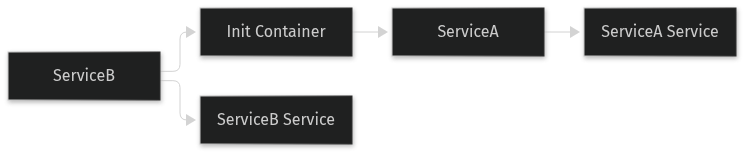
Let’s walk through an example where we have two services: ServiceA and ServiceB. ServiceA depends on ServiceB to be up and running before it can start. We will use an init container to wait for ServiceB to be ready before starting ServiceA.
# ServiceB Deployment and Service definitions (service-b.yaml)
apiVersion: apps/v1
kind: Deployment
metadata:
  name: service-b
spec:
  replicas: 1
  selector:
    matchLabels:
      app: service-b
  template:
    metadata:
      labels:
        app: service-b
    spec:
      containers:
      - name: service-b
        image: nginx:latest
        ports:
        - containerPort: 80
---apiVersion: v1
kind: Service
metadata:
  name: service-b
spec:
  selector:
    app: service-b
  ports:
  - protocol: TCP
    port: 80
    targetPort: 80
Apply the ServiceB configuration:
kubectl apply -f service-b.yamlNow, let’s create the ServiceA configuration with an init container to wait for ServiceB to be ready (service-a.yaml):
# ServiceA Deployment definition (service-a.yaml)
apiVersion: apps/v1
kind: Deployment
metadata:
  name: service-a
spec:
  replicas: 1
  selector:
    matchLabels:
      app: service-a
  template:
    metadata:
      labels:
        app: service-a
    spec:
      initContainers:
      - name: wait-for-service-b
        image: busybox:latest
        command:
        - sh
        - -c
        - 'until nc -zv service-b 80; do echo waiting for service-b; sleep 2; done;'
      containers:
      - name: service-a
        image: nginx:latest
        ports:
        - containerPort: 80
Apply the ServiceA configuration:
kubectl apply -f service-a.yamlIn this example, the init container To verify that the setup works as expected, you can use the following commands: You should see the init container logs indicating that it is waiting for Here are some common mistakes to watch out for when using init containers: Once you have a basic understanding of how to use init containers for ordered startup dependencies, you can explore more advanced topics: To clean up the resources created in this tutorial, you can use the following commands: This article was written with AI assistance.wait-for-service-b uses the nc (netcat) utility to check if ServiceB is reachable on port 80. If ServiceB
Verifying It Works
# Check the status of the pods
kubectl get pods
# Describe the pod to see the events and logs
kubectl describe pod <pod-name>
# Get the logs of the init container
kubectl logs <pod-name> -c wait-for-service-bServiceB to be ready, and once it is, the main container service-a should start.Common Mistakes
sh -c with a single-quoted string can cause issues if the shell interprets the quotes differently. Always test the command in a shell to ensure it works as expected.Going Further
nc, you could use a more robust tool like wget or curl to check for HTTP responses.wait-for-it.sh to manage dependencies. Each approach has its trade-offs, so choose the one that best fits your use case.Cleanup
kubectl delete -f service-b.yaml
kubectl delete -f service-a.yamlArchitecture
References