

OOMKilled: Diagnosing Memory Issues in Containers
Intermediate · 6 min read
Key takeaways
- Understand the fundamentals of Kubernetes memory management and the OOMKilled state.
- Set appropriate memory limits and requests to prevent frequent container terminations.
- Regularly monitor and optimize resource usage to maintain application reliability.
- Implement scaling, security, and performance tuning for robust production environments.
The Problem
Imagine you are a DevOps engineer responsible for maintaining a Kubernetes cluster that hosts a critical e-commerce application. One day, you notice that the application is experiencing frequent outages, and upon investigation, you see that the pods are being terminated with the status OOMKilled. This means that the container has exceeded its memory limits and was terminated by the kernel to prevent system instability. This scenario is not only frustrating but can also lead to significant downtime and revenue loss. Understanding how to diagnose and resolve OOMKilled issues is crucial for maintaining the reliability and performance of your applications.
Core Concepts
Before diving into the specifics of diagnosing OOMKilled, let's cover some fundamental concepts:
- Container: A lightweight, standalone, executable package that includes everything needed to run a piece of software, including the code, runtime, libraries, environment variables, and configuration files.
- Pod: The smallest deployable unit in Kubernetes. A pod can contain one or more containers, shared storage, and a unique network IP.
- Memory Limits and Requests: In Kubernetes, you can set resource requests and limits for CPU and memory. Requests are what the container is guaranteed to get, while limits are the maximum amount of resources the container can use.
- OOMKilled (Out of Memory Killed): This is a state where a container is terminated because it has exceeded its memory limit. The Linux kernel kills the process to prevent the system from becoming unstable due to excessive memory usage.
How It Works
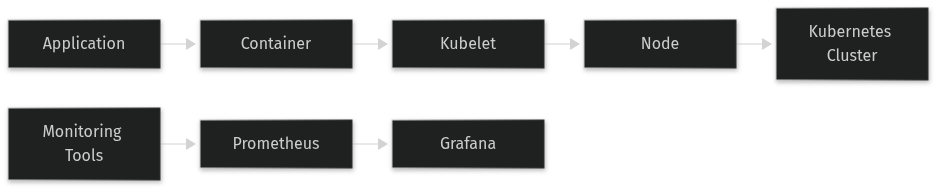
When a container is created in Kubernetes, the kubelet (the primary node agent) ensures that the container does not exceed its specified memory limits. If a container exceeds its memory limit, the kernel will terminate the process, and the container will be marked as OOMKilled. This mechanism is designed to prevent a single container from consuming all available memory on the node, which could cause other containers and the entire node to become unresponsive.
Here’s a step-by-step breakdown of how this works:
- The pod is scheduled on a node based on the available resources.
- The kubelet starts the container and monitors its resource usage.
- If the container exceeds its memory limit, the kernel sends an OOM (Out of Memory) signal to the process, and the process is terminated.
- The kubelet detects the termination and marks the container as
OOMKilled. - The pod may be restarted depending on the pod's restart policy.
Prerequisites
To follow this guide, you will need:
- A working Kubernetes cluster (e.g., Minikube, GKE, EKS, AKS).
- kubectl command-line tool installed and configured to interact with your cluster.
- Basic understanding of Kubernetes concepts such as pods, nodes, and resource management.
Hands-On Walkthrough
Let's walk through a realistic scenario where a pod is being terminated due to OOMKilled. We will create a simple application, deploy it, and then diagnose and resolve the issue.
Step 1: Create a Simple Application
First, let's create a simple Python application that consumes a lot of memory. Save the following code in a file named app.py:
import time, os, psutil, sysdef consume_memory(): while True: data = ' ' * 1024 * 1024 * 100 # Allocate 100MB of memory print(f'Memory used: {psutil.Process(os.getpid()).memory_info().rss / 1024 / 1024:.2f} MB') time.sleep(1)if __name__ == '__main__': try: consume_memory() except KeyboardInterrupt: print('Exiting...') sys.exit(0)Step 2: Create a Dockerfile
Create a Dockerfile to build the application image:
FROM python:3.8-slimCOPY app.py /app.pyRUN pip install psutilCMD ["python", "/app.py"]Step 3: Build and Push the Docker Image
Build the Docker image and push it to a registry (e.g., Docker Hub). Replace your-docker-username and your-image-name with your actual Docker username and image name:
docker build -t your-docker-username/your-image-name:latest .docker push your-docker-username/your-image-name:latestStep 4: Create a Kubernetes Deployment
Create a deployment manifest named deployment.yaml with the following content:
apiVersion: apps/v1kind: Deploymentmetadata: name: oomkilled-appspec: replicas: 1 selector: matchLabels: app: oomkilled-app template: metadata: labels: app: oomkilled-app spec: containers: - name: oomkilled-app image: your-docker-username/your-image-name:latest resources: requests: memory: 50Mi limits: memory: 100MiStep 5: Deploy the Application
Deploy the application using kubectl:
kubectl apply -f deployment.yamlStep 6: Observe the Behavior
Check the status of the pod:
kubectl get podsYou should see the pod in a CrashLoopBackOff state. To see the detailed events, use:
kubectl describe pod <pod-name>Look for the OOMKilled message in the events section.
Verifying It Works
To verify that the pod is indeed being terminated due to OOMKilled, you can check the logs and events:
kubectl logs <pod-name>This should show the memory consumption increasing until the container is terminated. You can also check the events:
kubectl get events --sort-by=.metadata.creationTimestampLook for the OOMKilled event, which confirms that the container was terminated due to exceeding its memory limit.
Common Mistakes
Here are some common mistakes when dealing with OOMKilled issues and how to avoid them:
- Setting Memory Limits Too Low: If you set the memory limit too low, the container may be terminated frequently. Always ensure that the memory limit is sufficient for the application's needs. Use monitoring tools to determine the actual memory usage and set appropriate limits.
- Ignoring Memory Requests: Memory requests are important for scheduling. If you set the request too low, the pod may be scheduled on a node with insufficient resources, leading to
OOMKilled. Ensure that the request is set to a reasonable value based on the application's baseline memory usage. - Not Monitoring Resource Usage: Regularly monitor the resource usage of your containers to detect and address potential issues before they cause outages. Tools like Prometheus and Grafana can help with this.
Going Further
Once you have resolved the immediate OOMKilled issue, consider the following production considerations and advanced topics:
- Scaling: Implement horizontal and vertical scaling to handle increased load. Horizontal scaling involves adding more replicas, while vertical scaling involves increasing the resources allocated to each pod.
- Security: Ensure that your containers are secure by using minimal base images, scanning for vulnerabilities, and implementing security policies. Use tools like Clair or Trivy for vulnerability scanning.
- Performance Tuning: Optimize your application's memory usage by identifying and fixing memory leaks, using efficient data structures, and tuning garbage collection settings. Profiling tools like pprof can help with this.
- Alternative Approaches: Consider using Kubernetes' Quality of Service (QoS) classes to manage resource allocation. For example, setting the QoS class to
Guaranteedensures that the pod is given the requested resources, reducing the risk ofOOMKilled.
Cleanup
To clean up the resources created in this guide, use the following command:
kubectl delete deployment oomkilled-appArchitecture
References
This article was written with AI assistance.